The NASEBANAL Growth iPhone app we told you was in review in our last post is now on the App Store. Together with the web version, you can now use Growth on your computer and on your phone.
Get NASEBANAL Growth on the App Store
Overview
- What is released: the NASEBANAL Growth iPhone app (Target, Recorder and Stopwatch in one app)
- Where: the App Store
- Price: you can start on the free plan
- Account: the same as the web version. The goals and records you made on the web are there on your iPhone
- Not included: the Android app is still in closed testing
Highlights
Goals, records and timing in one app
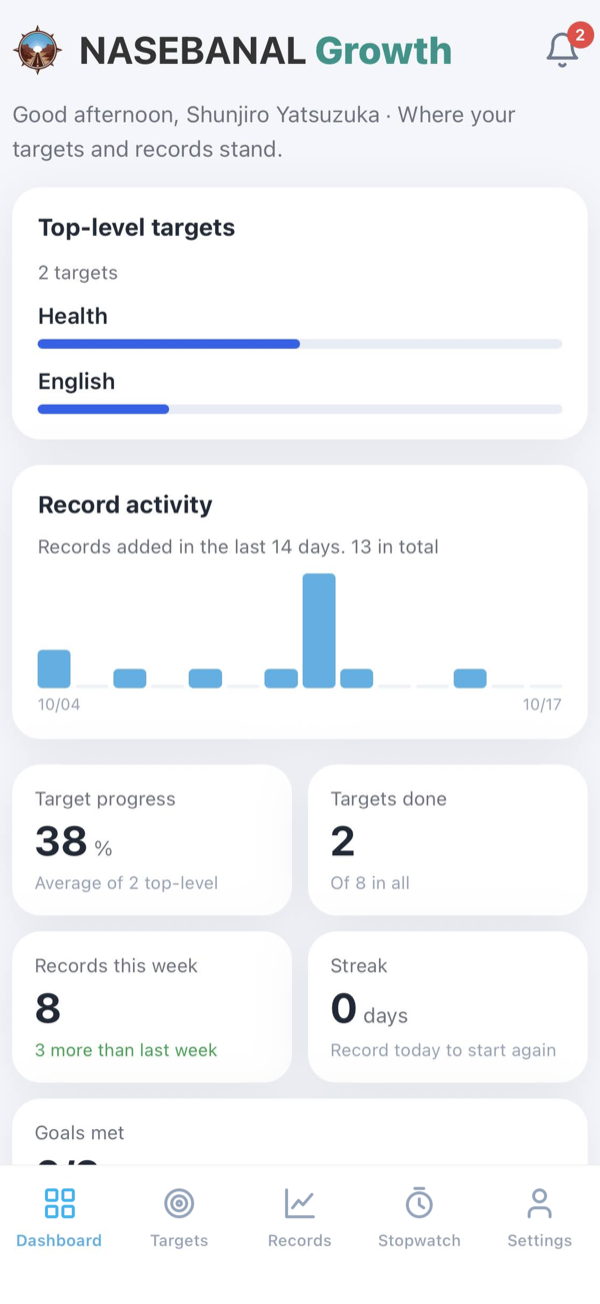
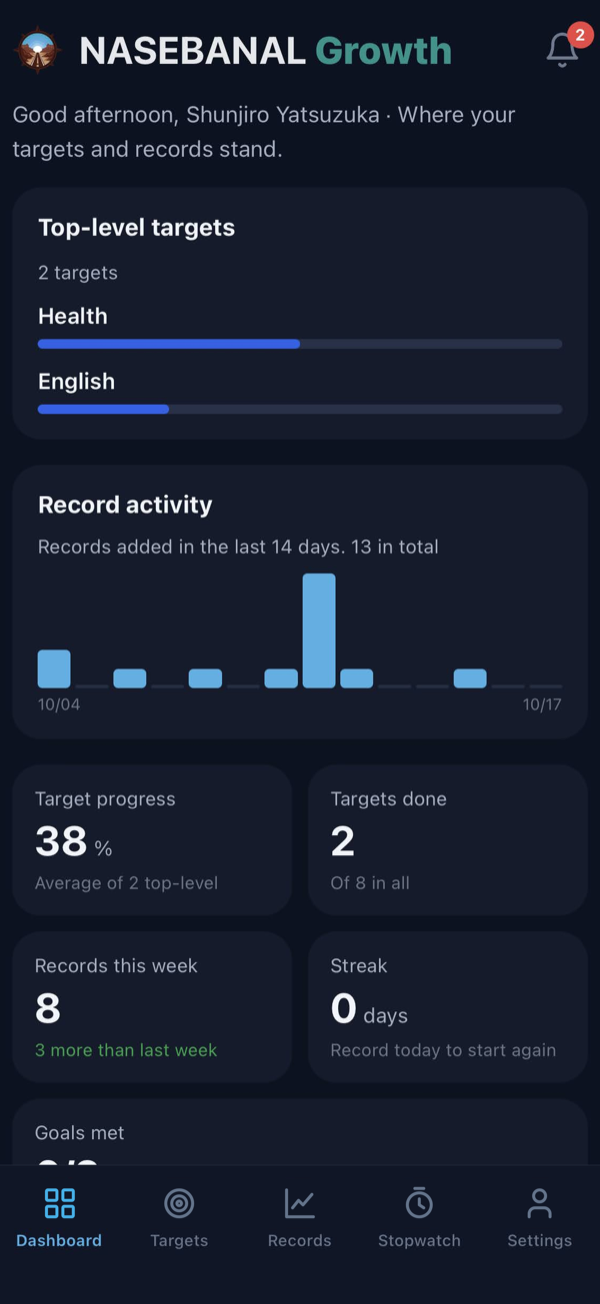
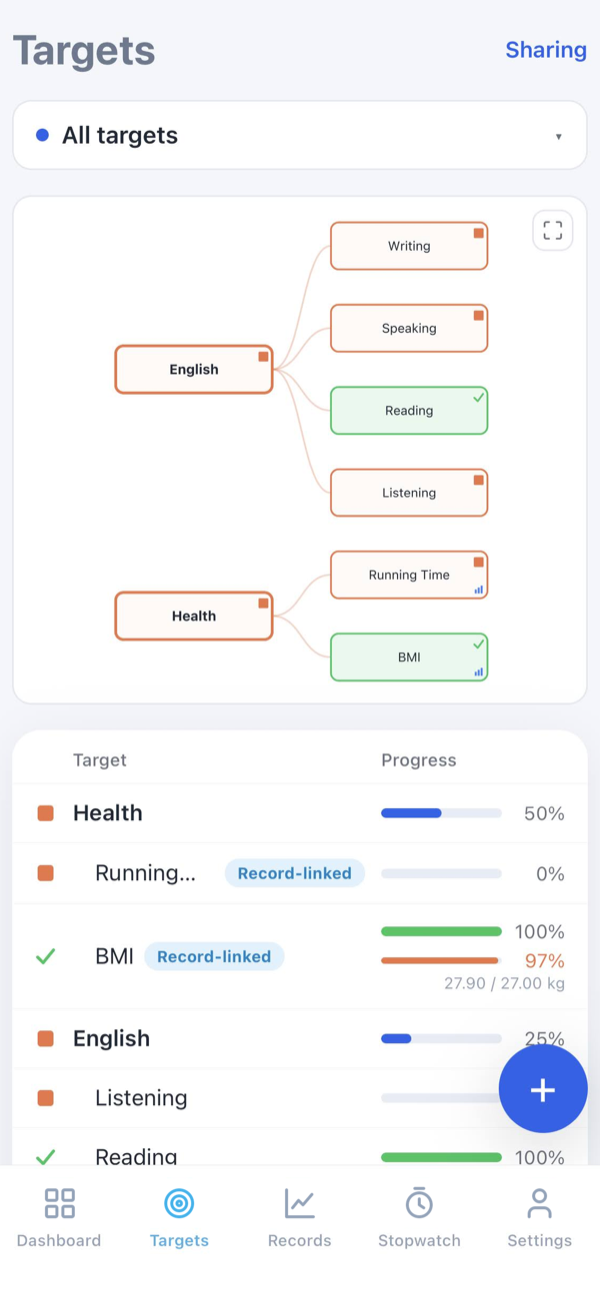
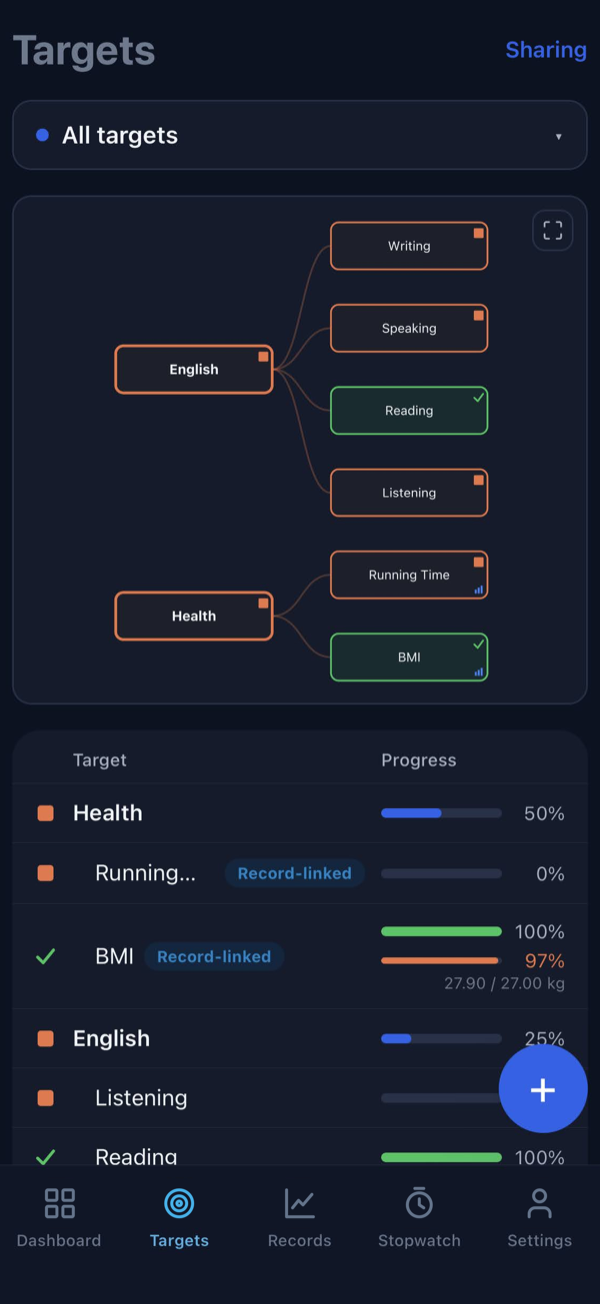
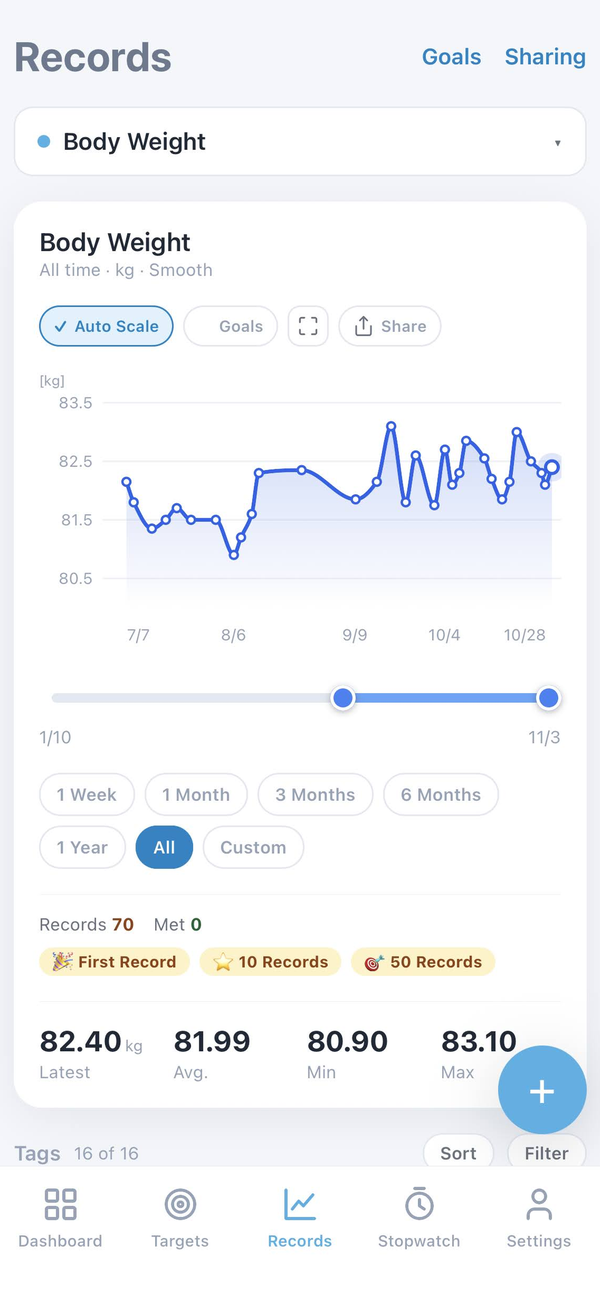
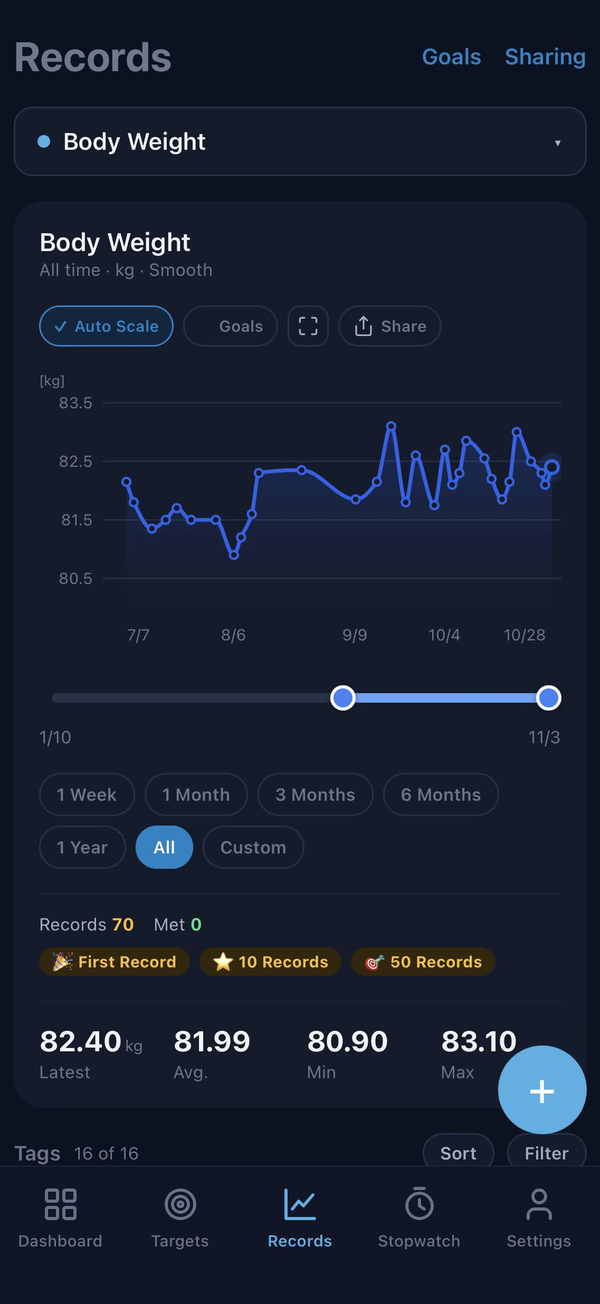
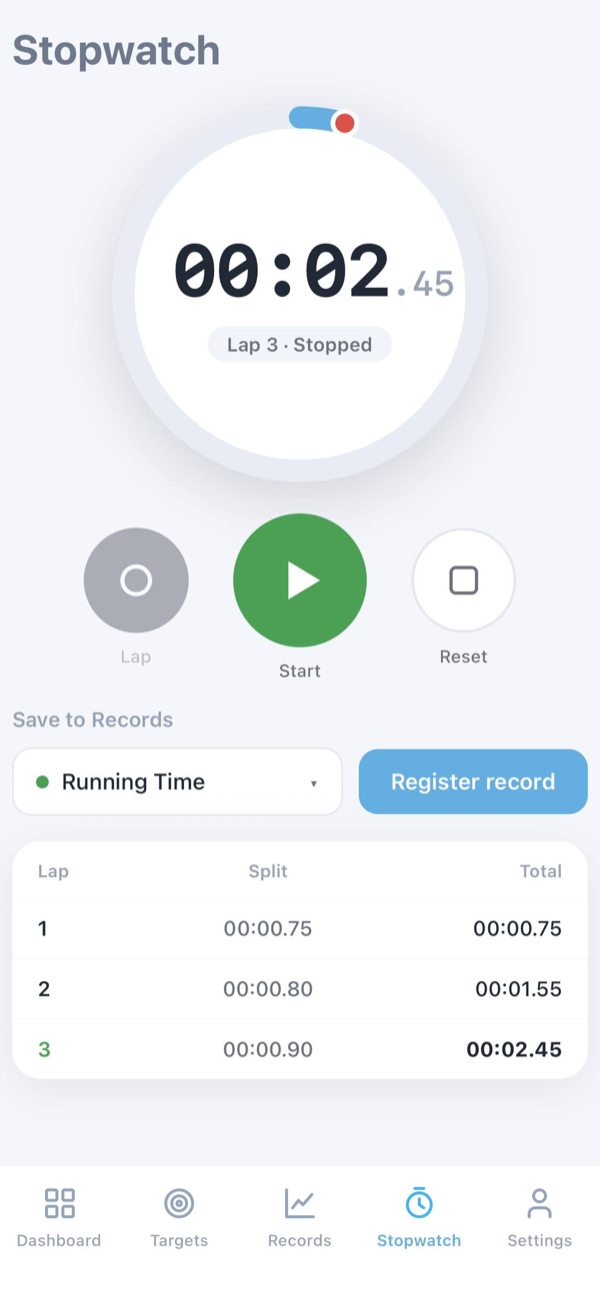
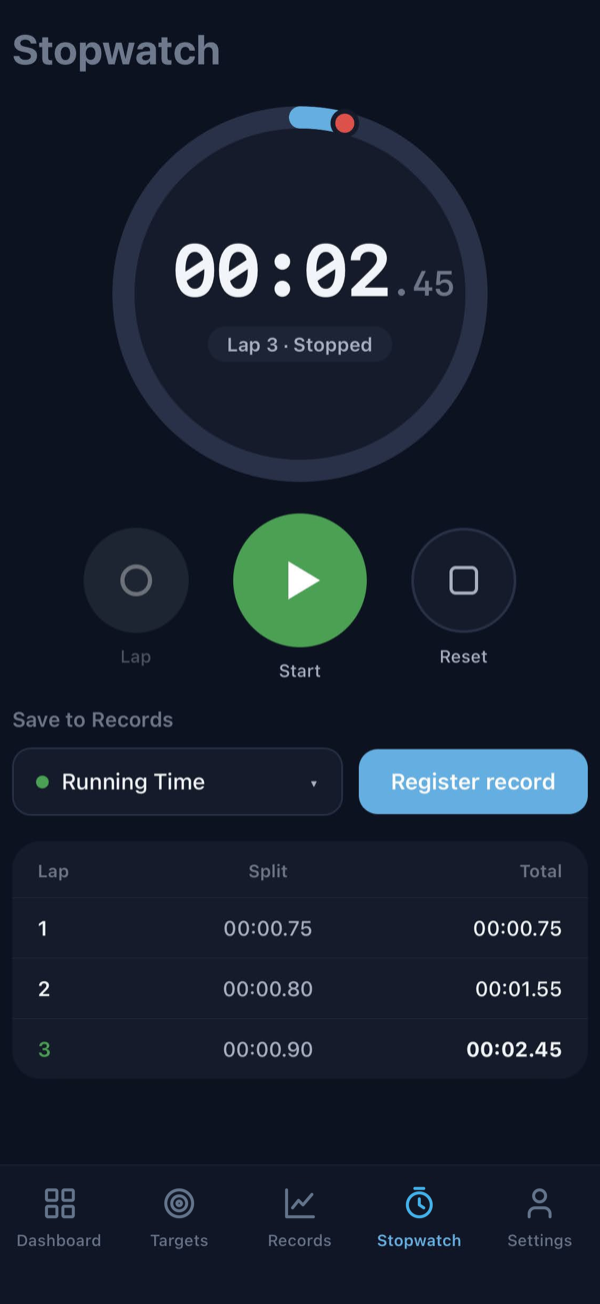
Move between the dashboard, Targets, Records and Stopwatch from the tab bar. The screens are laid out like the web version, so it does not matter which one you start on.
Record without a connection
In a basement gym or on a train with no signal, the records and goals you add are saved on the device and sent automatically once you are back online. A record keeps the time you entered it, not the time it was sent.
What you can add offline is a record under an existing tag and a new goal. Editing, deleting, sharing and attachments need a connection.
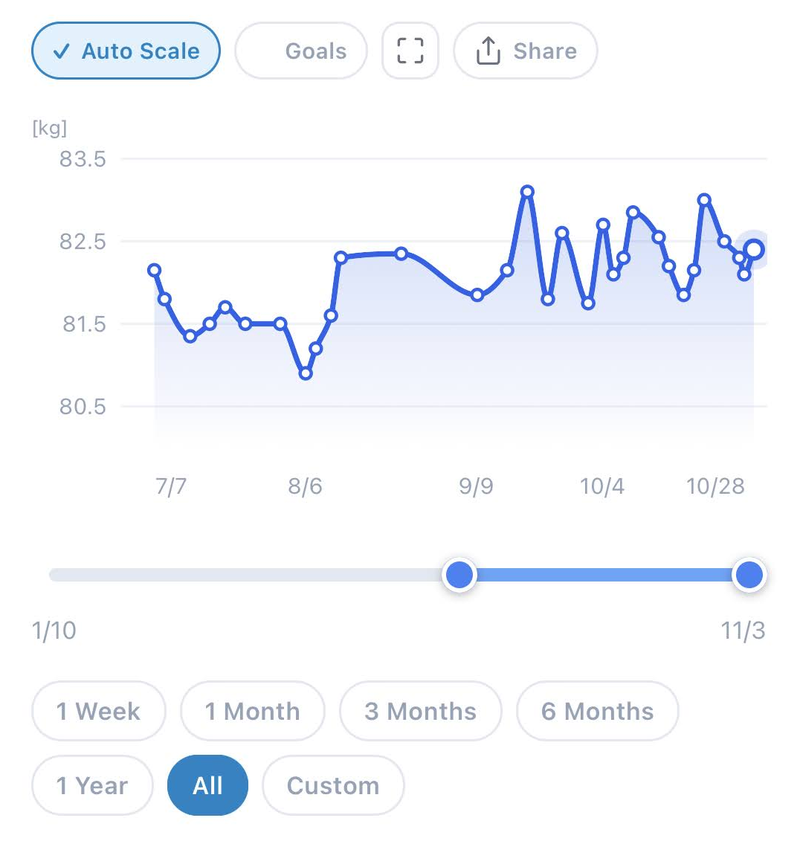
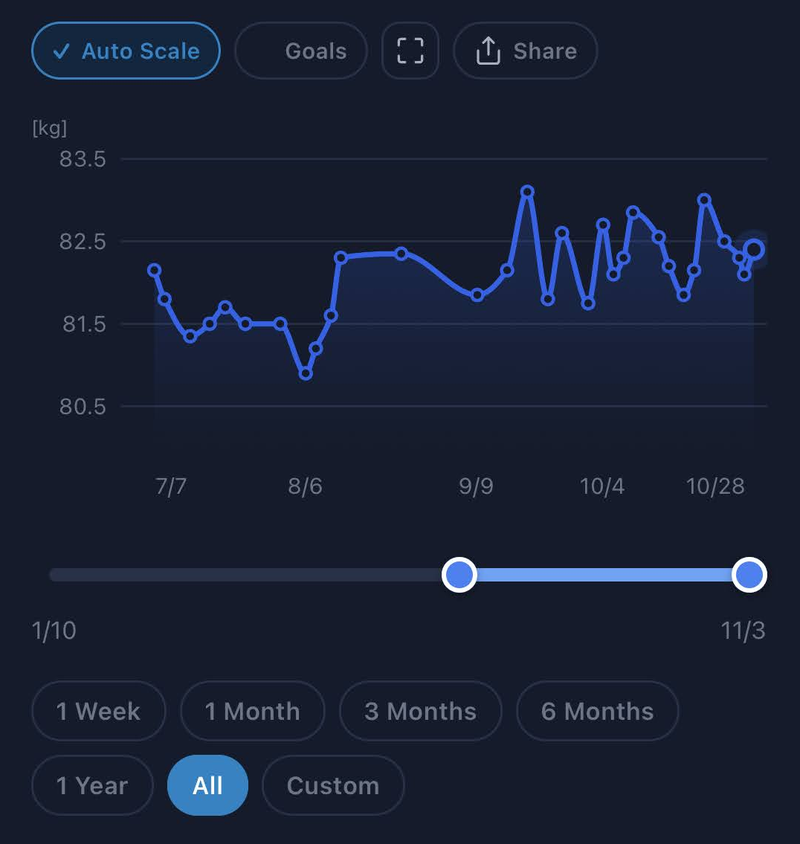
Move the chart's time range freely
We improved the time-range scale bar under the chart. On both the web version and the iPhone app you can:
- See the chart change as you drag: moving an end of the bar updates the chart on the spot to match the range (web)
- Drag the middle of the bar to slide the visible period: keep the same length and move toward the past or the present
The iPhone app adds:
- Pinch to zoom: pinch the chart to narrow it down to the period you care about
- Zoom in fullscreen charts and the Target tree: zoom in for a closer look even in fullscreen
Push notifications for shared changes
When a goal or tag you share is changed, you get a push notification, even if the app is closed.
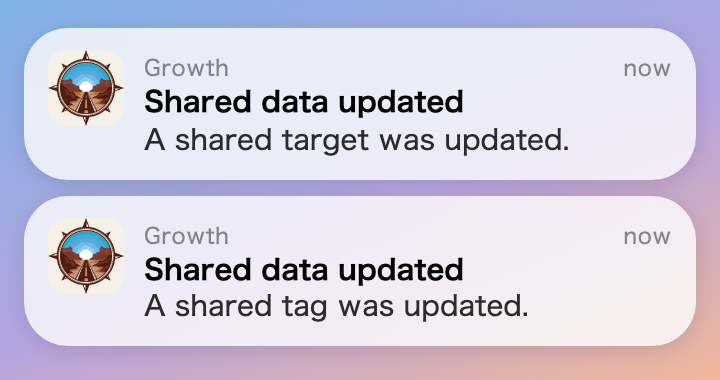
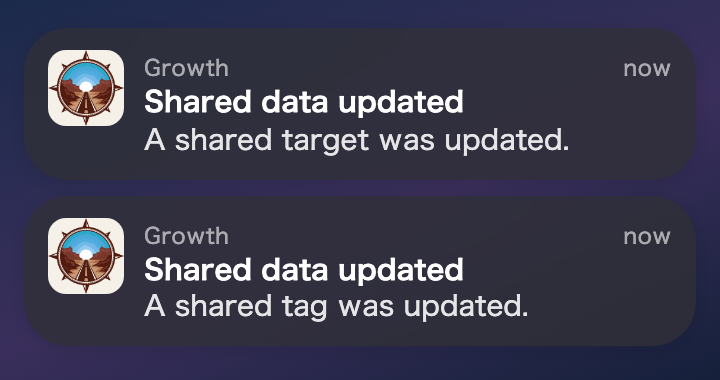
The notification display is an illustration. The text of a notification does not include the names of your targets or tags, so it is safe if someone else sees your lock screen.
Delete your account from inside the app
At the bottom of the Settings tab, you can delete your account and all of its data. It is the same operation as the web settings page.
- What is deleted: records, tags and attachments, targets, shares, organization memberships and API tokens
- Safeguards against a mistaken tap: the section starts collapsed and sits away from sign-out, and you have to type your email address to confirm
- It cannot be undone: deleted data cannot be restored, and the deletion is not available offline (it needs a connection)
How to use
Getting started
- Get "NASEBANAL Growth" from the App Store
- Open the app and sign in or sign up the same way as on the web
- If you are new, create a goal from the dashboard or save your first record
If you use the web version, just sign in to the iPhone app with the same account and your data is there.
Note: Some improvements to the app are delivered inside the app, separately from App Store updates. On the first launch right after you install it, the app may still show the state before they arrive. Fully quit the app and open it again, and it is up to date.
(To everyone who tested with TestFlight)
Thank you for testing with us. You can keep using the TestFlight version for a while, but not indefinitely, so we would be grateful if you could switch to the App Store version when it suits you. Here are the steps.
- Open the TestFlight version and wait for a moment with a connection, so anything you added offline is sent to the server before you switch
- Get NASEBANAL Growth from the App Store. If the TestFlight version is not replaced and you end up with two apps, delete the TestFlight one and install again
- Sign in with the same account. Your goals, records and sharing are stored on the account, so they appear as before
- In the TestFlight app, end your testing of NASEBANAL Growth. From now on, App Store updates keep you current
Android testers and support
Android testers
We are looking for Android testers. To join, first sign up for NASEBANAL, then open My Apps after you sign in and choose "Request beta access" on the "Growth for Android" tile. We will send the Google Play test invitation to the email address you enter in the form.
Support
To report a problem or request a feature, please use the Support page after you sign in.